Omu Dev Environment Setup
Ever wanted to dive into the codebase of Omu or run a localhost but didn’t know how to?
Setting up a dev env can be a bit of a headache, so here’s a quick and dirty guide to getting everything up and running.
mwAlwarmrrrAwwlurrl wlmwarwurlMurmwAlwar mwaraarrrmAaArmwAlwarmwrrr wlAmurwlAmurwrlurllmwarmwrrr mwAlwaruuRlmmrmwAlwarmlwar wurlMurwlAmurmAaAr mlarwrurrlmwrrrmrrrAwmar uuRlmmrwlurrlmaaAr arrmawmwrrr lmwarlmwarwlurrl mwrrrmrrrAwmaruuRlmmr aarrrmaaArwlAmuruuRlmmrwrlurll mwaarrwurlMur mlwarmlarmwrrrmlar mlararrmawmwAlwarwlmwarwlurrl mmarwurlMurmmarAlwuRmlmwar mrrrAwmlar wlurrlwlAmur wlurrlwrlurllaarrrmarmlwar aarrrmlwaruuRlmmrmlwar.
> This is mostly a Windows tutorial, but if you’re on Linux, I’m sure you already know how to tweak all commands.
There is also an official guide here.
TL;DR
wlAmurmaaArwlmwar wlmwarmar lmwarwurlMurmrrrAw wlarrullmwarAlwuRmuuRlmmrmwaarr arrmawwrlurll aarrrmAaArAlwuRm marmrrrAw mrrrAwmwarwlarrul wlurrlwrlurllarrmaw.
> There is a full tutorial further down the page.
Initial Setup
Open Powershell
Run the following commands and follow the instructions:
initial_setup.ps1 winget install Git.Git
winget install Python.Python.3.13
winget install Microsoft.DotNet.SDK.9Close Powershell
Open Powershell again
Run the following commands:
clone_repo.ps1 cd ~
git clone https://github.com/ProjectOmu/OmuStation.gitOpen the OmuStation folder inside your home directory
Double click on
RUN_THIS
Start Server and Client
- Double click on
runserver(The Windows Batch File, not the Shell Script) and wait until it’s up - Double click on
runclient(The Windows Batch File, not the Shell Script)
Update the Project
- Open Powershell
- Run the following commands:
update_repo.ps1 cd ~/OmuStation
git pull
Full Tutorial
Open Powershell
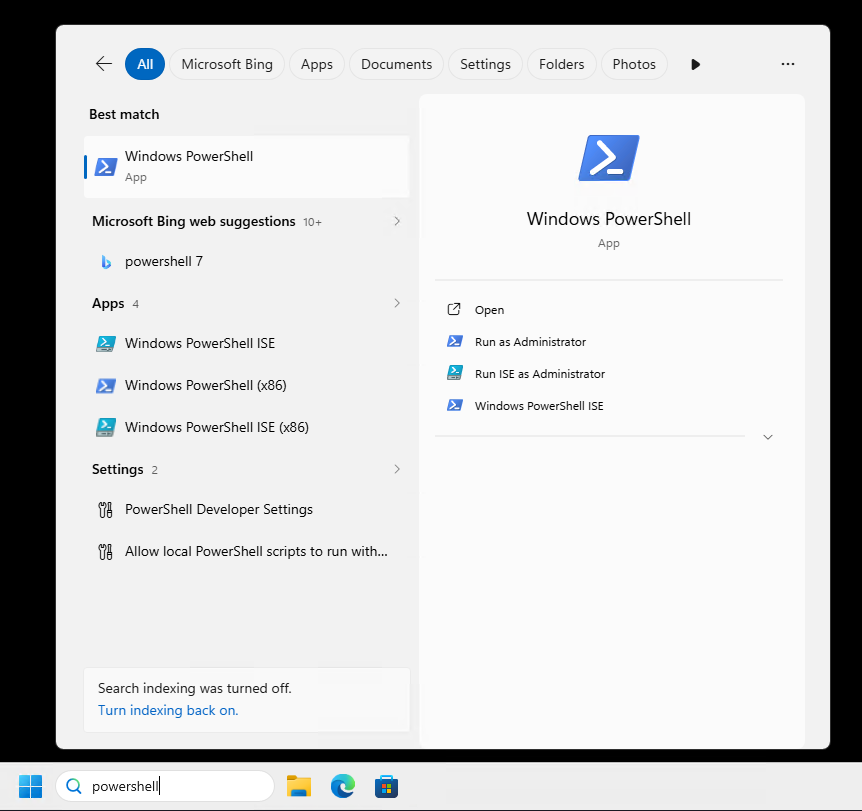
Type the following into it to install git then press enter:
install_git.ps1 winget install Git.Git
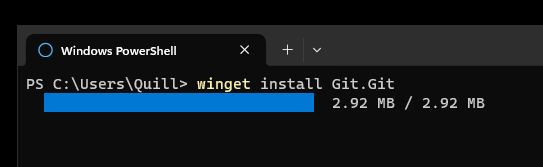
It’ll ask you if you agree, press y.

Then wait for the admin prompt and press yes in there as well.

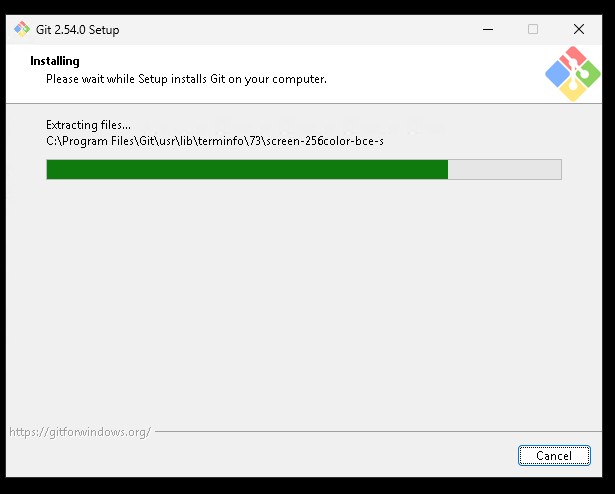
Then Wait until it’s done.

Repeat the same thing with python:
install_python.ps1 winget install Python.Python.3.13

Repeat the same thing again with the dotnet sdk:

install_dotnet.ps1 winget install Microsoft.DotNet.SDK.9
This will show an admin prompt again, click yes then wait until it’s done installing.
Close Powershell
Reopen Powershell
Change the directory to your home directory by typing the following text into the powershell window and then press enter:
change_directory.ps1 cd ~
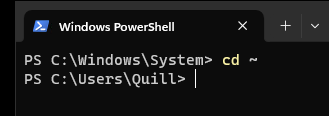
Then run the following to download the server files:
clone_repo.ps1 git clone https://github.com/ProjectOmu/OmuStation.git
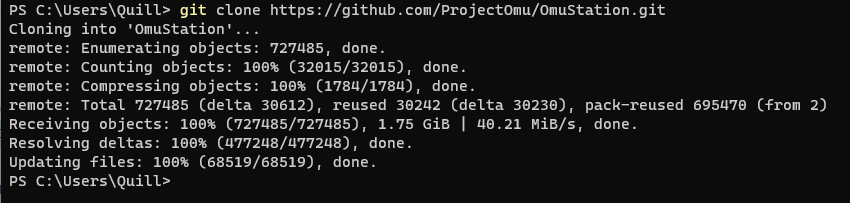
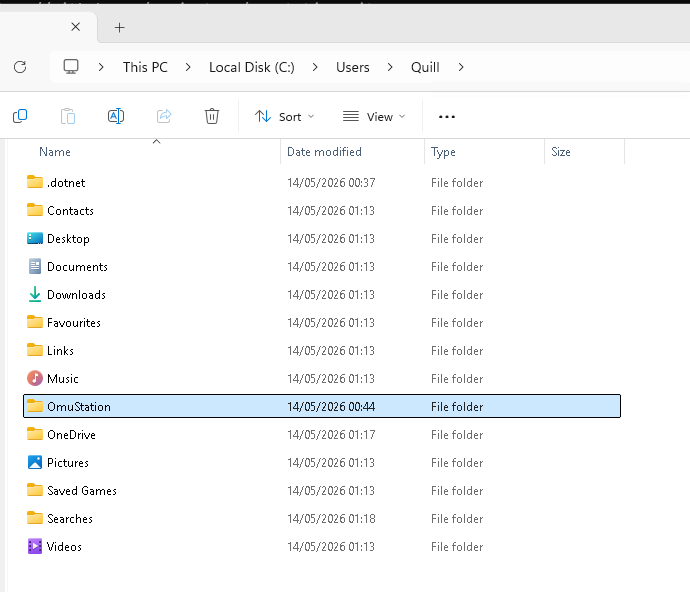
Then open the
OmuStationfolder in your home directory:
Double click
RUN_THIS: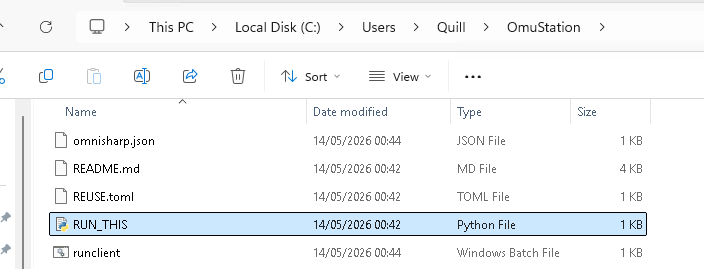
This should open a new powershell window and close after a while again.
Double click on
runserver(Make sure it’s the Windows Batch File, not the Shell Script)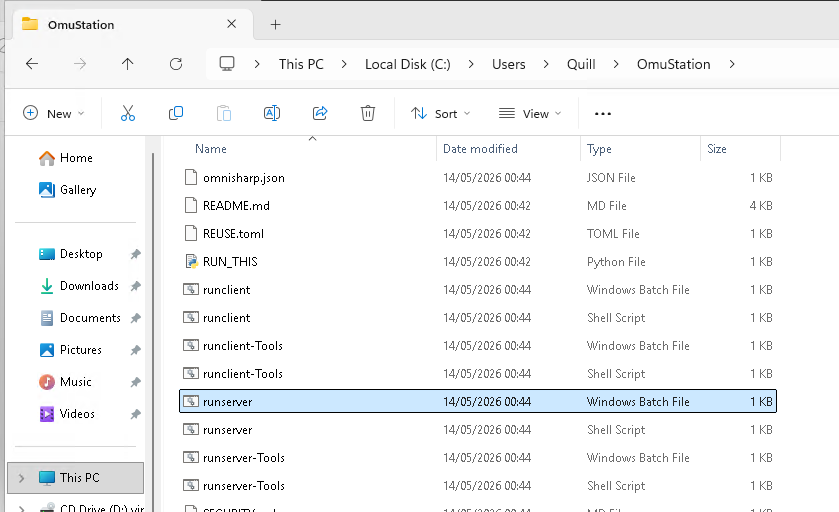
Another Powershell window should open, it should build and run the server: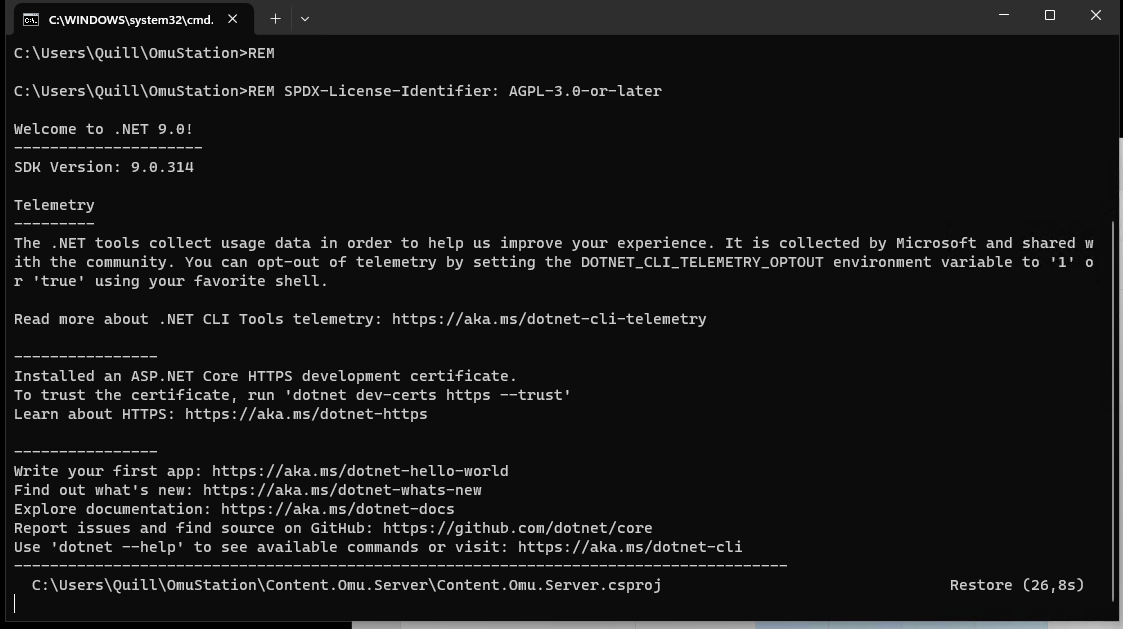
Wait until this is done, this is when the text changes to the actual games server: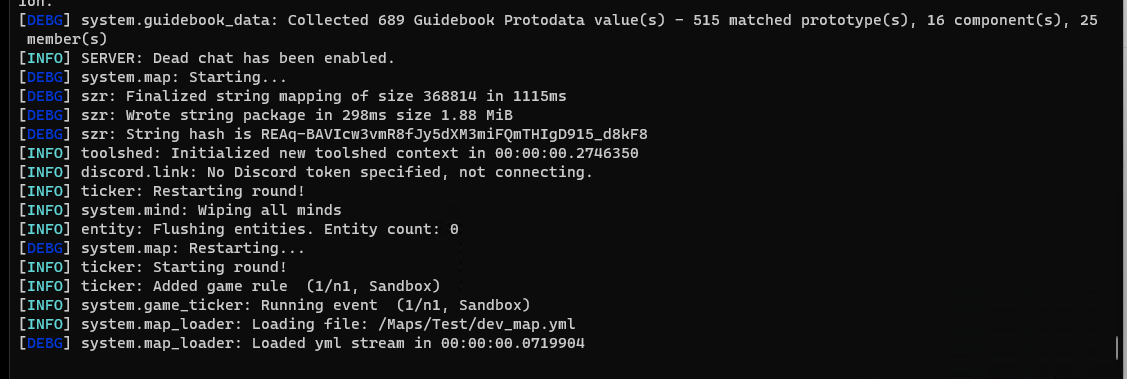
Double click on
runclient(Make sure it’s the Windows Batch File, not the Shell Script)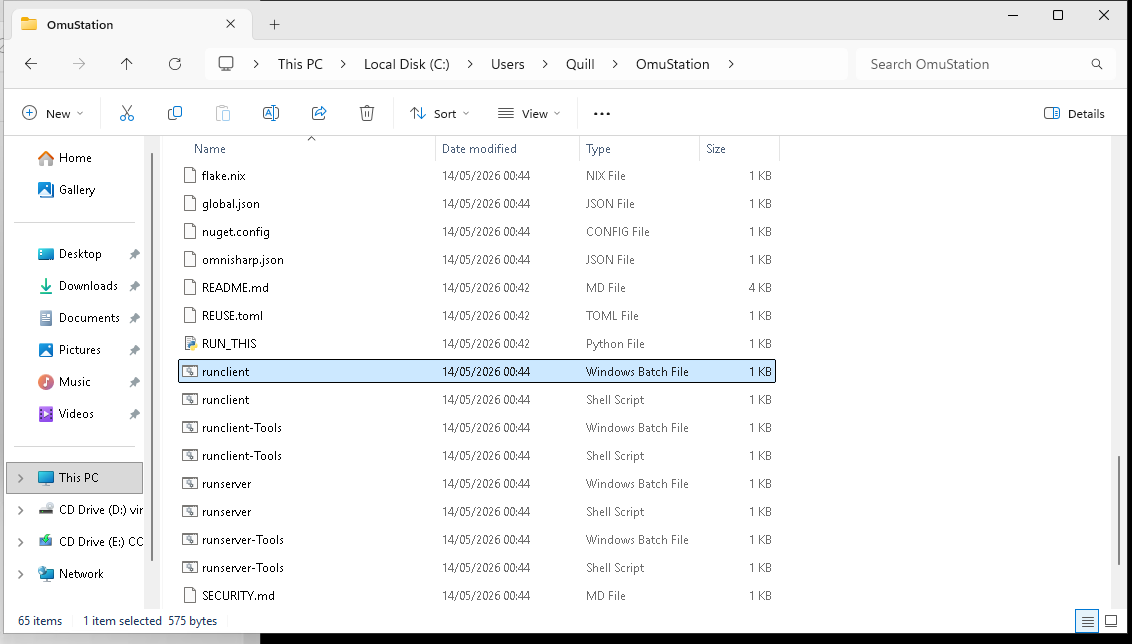
Wait until the game launches, then click connect and you’re in